Confiuration for making Delve work with neovim
Configuration for making Delve work with neovim
Introduction
Delve is a debugger for the Go programming language. It allows you to inspect the state of your program while it is running, set breakpoints, and step through your code. It is a powerful tool for debugging Go applications and can help you find and fix bugs quickly.
In this blog post, I will share my experience with setting up Delve for debugging Go applications in Neovim. I will cover the installation process, configuration, and some tips and tricks to make the most out of Delve.
Prerequisites
- Go installed on your system
- Delve installed on your system
- Neovim installed on your system
Learn more
Delve
it has mainly 2 modes interms of neovim with dap
attach: attach to a running process via some portlaunch: start a new process and debug it
When you want stdin and stdout capabilities, use attach mode. A server running in headless mode is first created and the debugging client calls it — this lets you perform normal program execution in the terminal where the server is running. Essential for programs that require user input or terminal output.
Neovim
this is for better tab management (Optional)
  {
    'romgrk/barbar.nvim',
    dependencies = {
      'lewis6991/gitsigns.nvim', -- OPTIONAL: for git status
      'nvim-tree/nvim-web-devicons', -- OPTIONAL: for file icons
    },
    init = function()
      vim.g.barbar_auto_setup = true
    end,
  },
then comes the dap configuration
  {"ldelossa/nvim-dap-projects"},
  {"mfussenegger/nvim-dap"},
  {
    "rcarriga/nvim-dap-ui",
    dependencies = {"mfussenegger/nvim-dap", "nvim-neotest/nvim-nio"},
    config = function ()
      require("dapui").setup()
    end
  },
  {
    "leoluz/nvim-dap-go",
    config = function()
      require("dap-go").setup({
        dap_configurations = {
          {
            type = "go",
            name = "For specific program",
            mode = "remote",
            request = "attach",
            program = "${file}",
            args = require("dap-go").get_arguments,
            buildFlags = require("dap-go").get_build_flags,
          },
          {
            type = "go",
            name = "Attach remote", -- this is the name that will be shown in the dap ui
            mode = "remote",
            request = "attach",
            port = function()
              return tonumber(vim.fn.input('Port: ', '40404'))
            end,
          },
        },
        delve = {
          path = "/home/dipankar/go/bin/dlv",
          initialize_timeout_sec = 30,
          -- args = dap_go.get_arguments,
          -- build_flags = dap_go.get_build_flags,
        },
      })
    end,
},Update the delve.path in the config to match your actual dlv binary location. Run which dlv to find it.
then add these keymaps for better and easier navigations
vim.keymap.set('n', '<F5>', function() require('dap').continue() end, { desc = 'Go debug CONTINUE' })
vim.keymap.set('n', '<Leader>db', function() require('dap').toggle_breakpoint() end, { desc = '[D]ebug [b]reakpoint' })
vim.keymap.set('n', '<Leader>dU', function() require('dapui').toggle() end, { desc = '[D]ebug [U]UI toggle' })
vim.keymap.set('n', '<Leader>lp', function() require('dap').set_breakpoint(nil, nil, vim.fn.input('Log point message: ')) end, { desc = '[l]log pointer for debug' })

vim.keymap.set({'n', 'v'}, '<Leader>dh', function()
  require('dap.ui.widgets').hover()
end, {desc = 'debug hover info'})
vim.keymap.set({'n', 'v'}, '<Leader>dp', function()
  require('dap.ui.widgets').preview()
end)
vim.keymap.set('n', '<Leader>df', function()
  local widgets = require('dap.ui.widgets')
  widgets.centered_float(widgets.frames)
end)
vim.keymap.set('n', '<Leader>ds', function()
  local widgets = require('dap.ui.widgets')
  widgets.centered_float(widgets.scopes)
end)


local dap, dapui = require("dap"), require("dapui")
dap.listeners.after.event_initialized["dapui_config"] = function()
  dapui.open()
end
dap.listeners.before.event_terminated["dapui_config"] = function()
  dapui.close()
end
dap.listeners.before.event_exited["dapui_config"] = function()
  dapui.close()
end
Lets Begin Debugging
Now once all of these configurations are ready
start a new terminal session and run the command
dlv debug --headless --listen=:40404 --api-version=2 --redirect="stdin:/dev/stdin" --redirect="stdout:/dev/stdout" --redirect="stderr:/dev/stderr" -- <program args>now open your neovim
- Navigate to your main program
- Attach Breakpointers
- Start the debugger by Pressing
F5and choose theAttach remoteoption
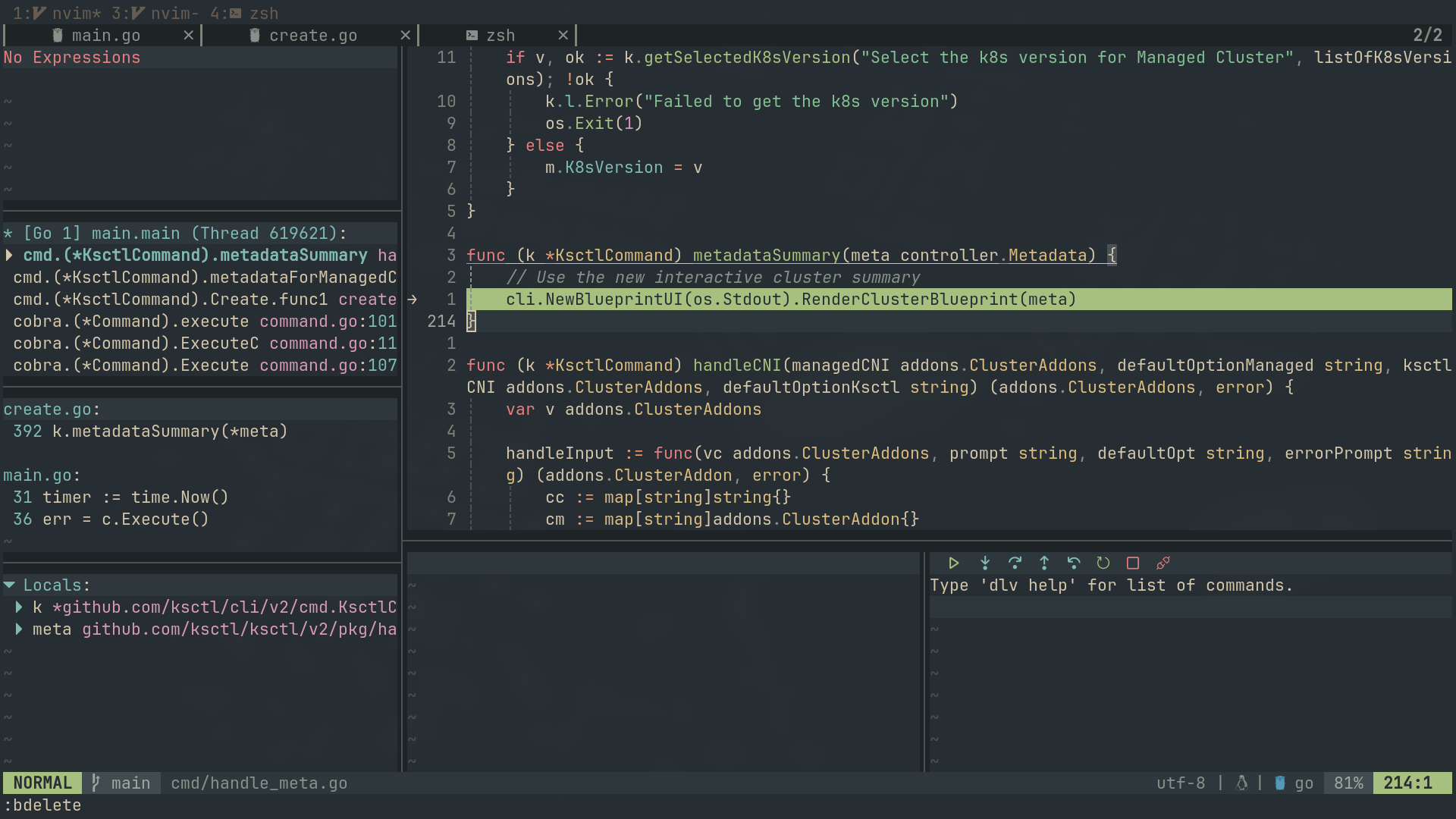
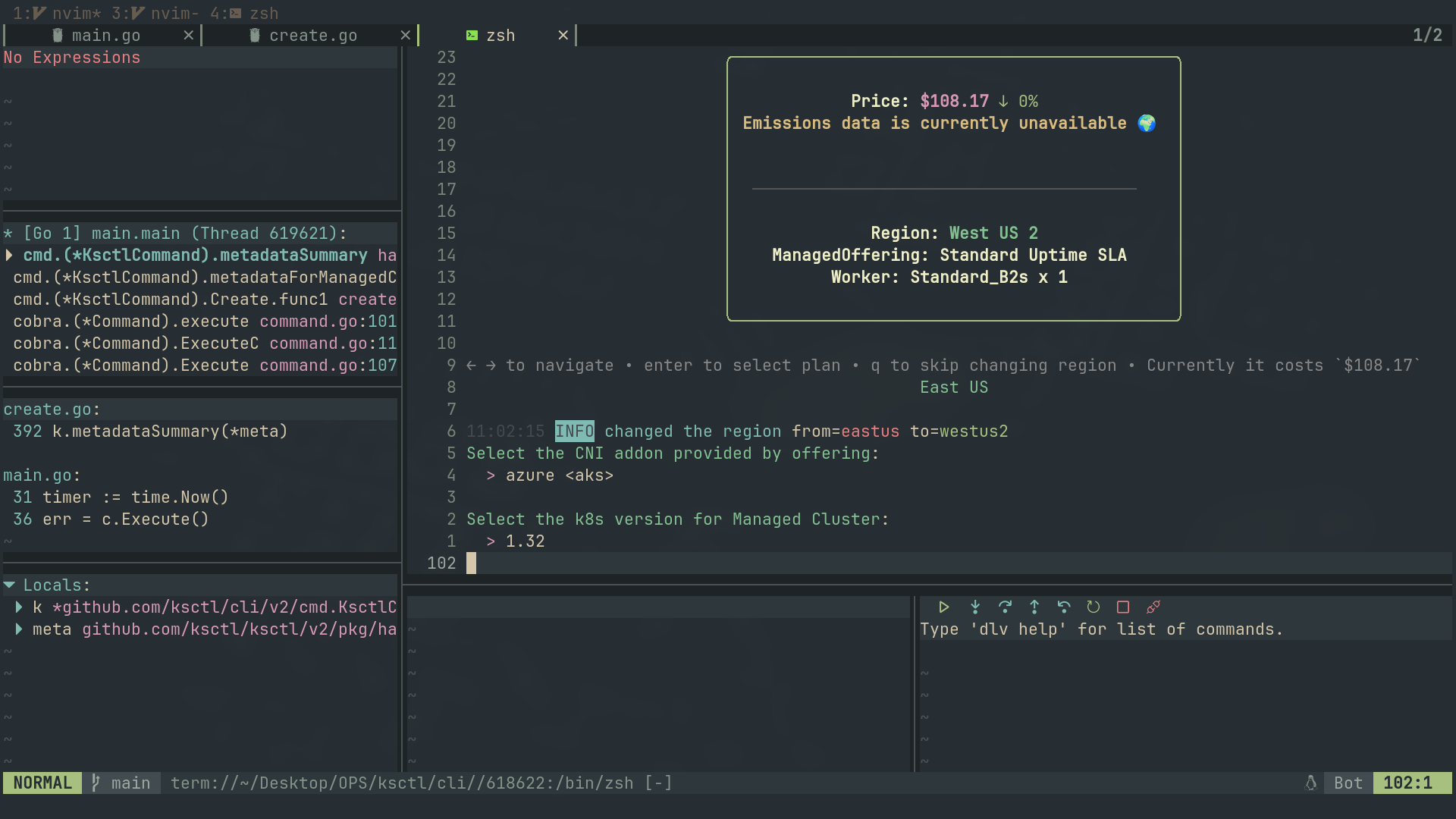
You can stay in the same Neovim session and run the DAP server there too. Just open a new terminal tab with :tabnew +term and start the dlv server from there — no need to switch windows.
Conclusion
In this blog post, I shared my experience with setting up Delve for debugging Go applications in Neovim. I covered the installation process, configuration, and some tips and tricks to make the most out of Delve. I hope you found this blog post helpful and that it will help you debug your Go applications more effectively.
If you have any questions or comments, please feel free to reach out to me on Twitter or GitHub. I would love to hear from you!
References

Other posts
See all posts
Why Your Laptop GPU Will Never Work with Proxmox Passthrough
Six attempts, three days, one stubborn MX330. A post-mortem on laptop GPU passthrough in Proxmox — what failed, why it's architecturally impossible, and exactly what to buy instead.
Your Old Laptop Is a Linux Server: A Complete Proxmox Home Lab Setup Guide
Turn an old laptop into a full Proxmox home server — Wi-Fi NAT routing, DHCP, MTU fixes, and every gotcha you'll actually hit. A practical guide that also teaches you how AWS works.
Quantum Computing for the Curious Developer: Building Your First Circuits with Qiskit
A developer's hands-on guide to quantum computing fundamentals — from qubits and gates to building a quantum teleportation circuit, no physics degree required.