The 2-Hour Trap: Why chmod 666 on Docker Socket Will Haunt You
A cautionary tale for DevOps engineers about the dangerous shortcut of chmod 666 on Docker sockets, and the proper GID-based approach for Docker-in-Docker setups.
The Setup Nobody Warns You About
You’ve got your self-hosted GitHub Actions runner — and it’s running inside a Docker container. That’s the first layer. Now your workflow steps need to spin up more Docker containers: maybe a Postgres instance for integration tests, a Redis container for cache validation, or a full docker compose stack to run end-to-end checks before merging.
Docker inside Docker. Containers spawning containers. The standard way to make this work is mounting the host’s Docker socket into the runner container so it can issue Docker commands. You do that, run the workflow, and — permission denied.
Stack Overflow has an answer. It always does.
chmod 666 /var/run/docker.sockIt works. You move on. And you’ve just handed the keys to your Docker daemon to every user on the server.
I lost two hours to this exact rabbit hole before finding the fix that should have been the first result.
The Problem: Docker-in-Docker Is Deceptively Simple
Here’s the real-world scenario. Your self-hosted GitHub Actions runner is itself a Docker container running on a VM or bare-metal host. Inside that runner, your CI workflow needs Docker access — not to build images necessarily, but to run services that the workflow depends on. Think:
- Spinning up a database container to run migration tests against
- Starting a mock API server in a sidecar container
- Running
docker compose upto bring up a multi-service test environment - Launching a containerized linter, scanner, or test harness
The runner container doesn’t have its own Docker daemon. Instead, it talks to the host’s Docker daemon by mounting the socket. In GitHub Actions, this is how it typically looks — you define a job container and mount the socket via options:
jobs:
  integration-tests:
    runs-on: self-hosted
    container:
      image: ubuntu:24.04
      options: --user root -v /var/run/docker.sock:/var/run/docker.sock
    steps:
      - uses: actions/checkout@v4
      - name: Run tests with services
        run: |
          docker compose -f docker-compose.test.yml up -d
          ./run-tests.sh
          docker compose -f docker-compose.test.yml down
Notice the --user root — you need root to start the container so you can fix the GID (more on that shortly). But the workflow runs inside that container, and when it tries to talk to Docker, you get:
Got permission denied while trying to connect to the
Docker daemon socket at unix:///var/run/docker.sock
The user inside the container doesn’t belong to the docker group. Fair enough. But here’s where it gets tricky — the docker group’s GID inside the container doesn’t match the GID of the group that owns the socket on the host.
This is the detail that trips up almost everyone.
The Dangerous Shortcut
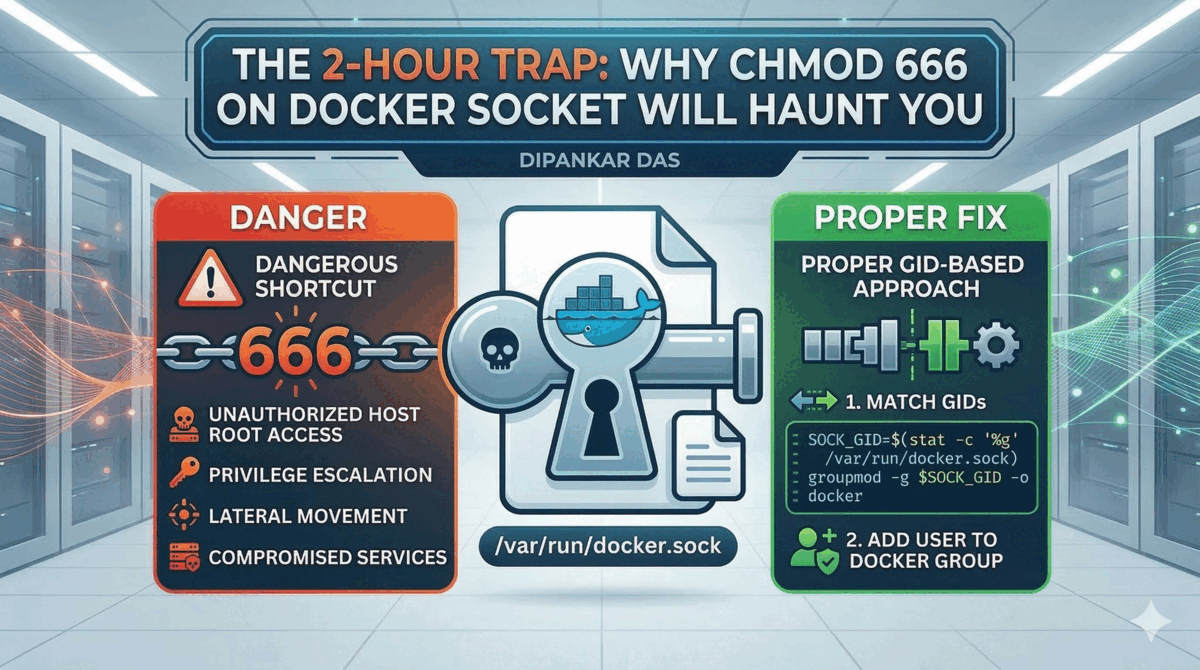
When you run chmod 666 /var/run/docker.sock, you’re setting read+write permissions for all users. Not just the Docker group. Not just your runner. Everyone.
chmod 666 on the Docker socket means any user on the host — including compromised services, rogue processes, or lateral movement from an attacker — can issue arbitrary Docker commands. They can mount host filesystems, access secrets, spawn privileged containers, and effectively gain root access to the host.
And the worst part? This persists until you delete the socket file and restart the Docker daemon. There’s no “undo chmod” that makes this safe again in practice, because any process could have already cached a file descriptor.
I’ve seen this in production environments. I’ve seen it in tutorials. It’s everywhere, and it’s a ticking time bomb.
The Fix: Match the GID
The actual solution takes four lines and zero security compromises.
# Create your non-root user
useradd -m runner

# Get the GID of the mounted Docker socket
SOCK_GID=$(stat -c '%g' /var/run/docker.sock)

# Align the docker group's GID to match the socket's GID
groupmod -g $SOCK_GID -o docker

# Add the user to the docker group
usermod -aG docker runner
That’s it. Let me break down why this works.
What’s Actually Happening
When you mount /var/run/docker.sock from the host into a container, the file retains its host-side ownership — including the numeric GID. Inside the container, the docker group likely exists, but with a different GID.
Linux doesn’t care about group names for permission checks. It cares about numbers. If the socket is owned by GID 998 on the host, but the container’s docker group is GID 999, your user won’t have access — even though they’re in the “docker” group.
The groupmod -g $SOCK_GID -o docker command reassigns the container’s docker group to whatever GID the socket actually has. The -o flag allows non-unique GIDs, which is fine inside an ephemeral container. Now when your user is added to the docker group, the GIDs actually align, and permission is granted.
The stat -c '%g' command reads the numeric GID of the socket file. This makes the setup portable — it works regardless of what GID the host assigns to its Docker group.
Putting It Into Practice
For a GitHub Actions self-hosted runner using Docker-in-Docker, your entrypoint script should look something like this:
#!/bin/bash
set -e

# Ensure Docker socket is accessible without chmod 666
if [ -S /var/run/docker.sock ]; then
  SOCK_GID=$(stat -c '%g' /var/run/docker.sock)
  groupmod -g $SOCK_GID -o docker
  usermod -aG docker runner
fi

# Switch to the non-root user and start the runner
exec gosu runner /home/runner/actions-runner/run.sh
In your Dockerfile:
FROM ubuntu:22.04

RUN groupadd docker \
    && useradd -m runner \
    && apt-get update \
    && apt-get install -y docker-cli gosu

COPY entrypoint.sh /entrypoint.sh
RUN chmod +x /entrypoint.sh

ENTRYPOINT ["/entrypoint.sh"]
The container starts as root (only for the GID fix), then drops privileges immediately. The runner process itself never runs as root.
Why People Still Reach for chmod 666
I get it. You’re debugging at 11 PM. The pipeline is broken. You need it fixed now. chmod 666 is one command and it works immediately. The GID approach requires understanding why permissions are failing, not just that they’re failing.
But here’s the thing — the GID fix is also one-time setup. Once it’s in your entrypoint, you never think about it again. The chmod 666 approach, on the other hand, creates a vulnerability that persists silently and is invisible in most security scans.
If you’ve previously used chmod 666 on a Docker socket in any environment, the only way to fully remediate is to remove the socket file and restart the Docker daemon: sudo rm /var/run/docker.sock && sudo systemctl restart docker. Simply changing permissions back isn’t sufficient if other processes have cached file descriptors.
The Bigger Picture
This is a pattern I see constantly in DevOps: a security-compromising shortcut that becomes “the way we do it” because the correct approach requires understanding one more concept. The GID mismatch between host and container is genuinely non-obvious. But once you see it, the fix is straightforward.
If you’re managing self-hosted runners, or any Docker-in-Docker setup — audit your socket permissions today. If you see 666 on that socket, you now know what to do instead.
The two hours I spent debugging this were the most educational two hours I’ve had in a while. Hopefully this saves you those two hours — and a security incident.

Other posts
See all posts
Why Your Laptop GPU Will Never Work with Proxmox Passthrough
Six attempts, three days, one stubborn MX330. A post-mortem on laptop GPU passthrough in Proxmox — what failed, why it's architecturally impossible, and exactly what to buy instead.

Your Old Laptop Is a Linux Server: A Complete Proxmox Home Lab Setup Guide
Turn an old laptop into a full Proxmox home server — Wi-Fi NAT routing, DHCP, MTU fixes, and every gotcha you'll actually hit. A practical guide that also teaches you how AWS works.

Quantum Computing for the Curious Developer: Building Your First Circuits with Qiskit
A developer's hands-on guide to quantum computing fundamentals — from qubits and gates to building a quantum teleportation circuit, no physics degree required.